GUIDE · ADMIN

Admin guide

Everything you need to run your club with Mah Tables, step by step, with screenshots of the app.

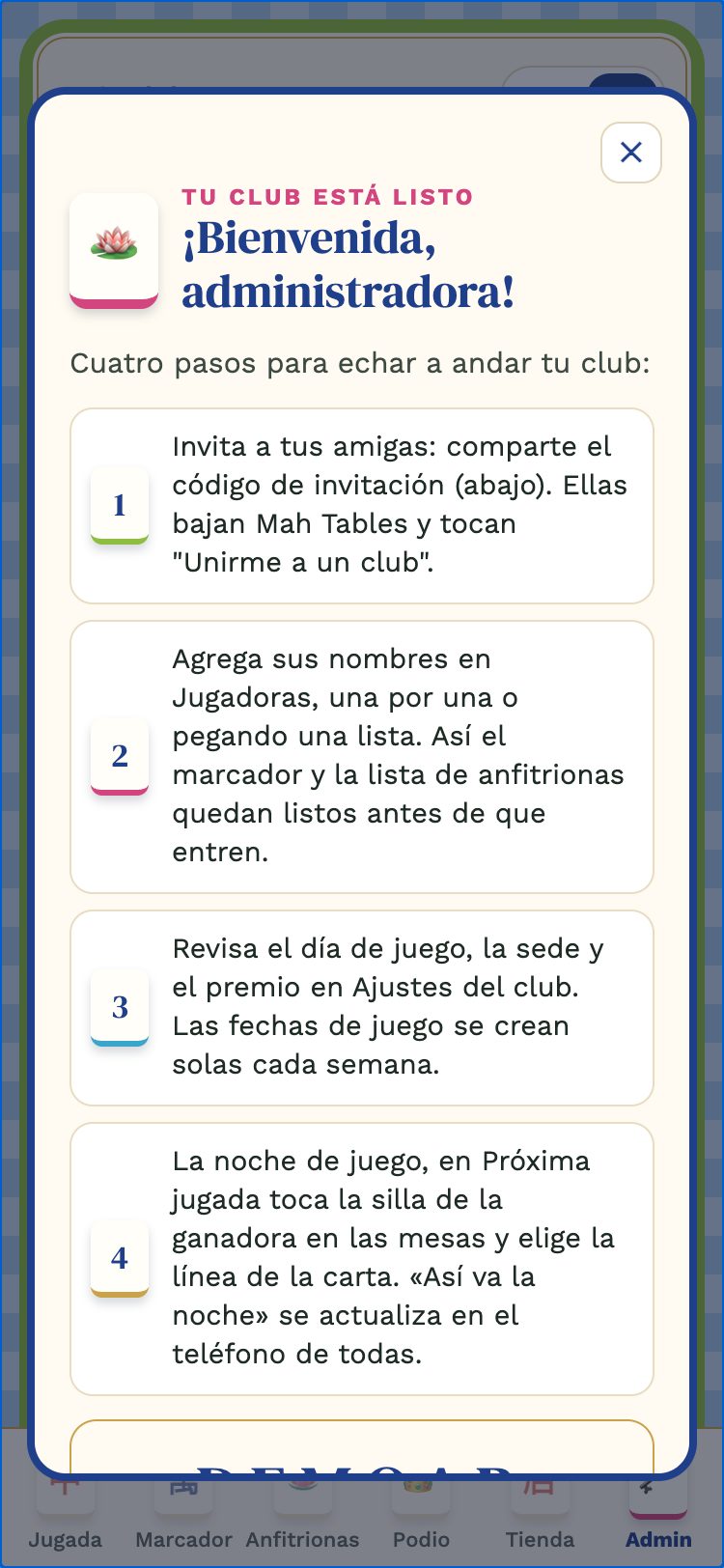
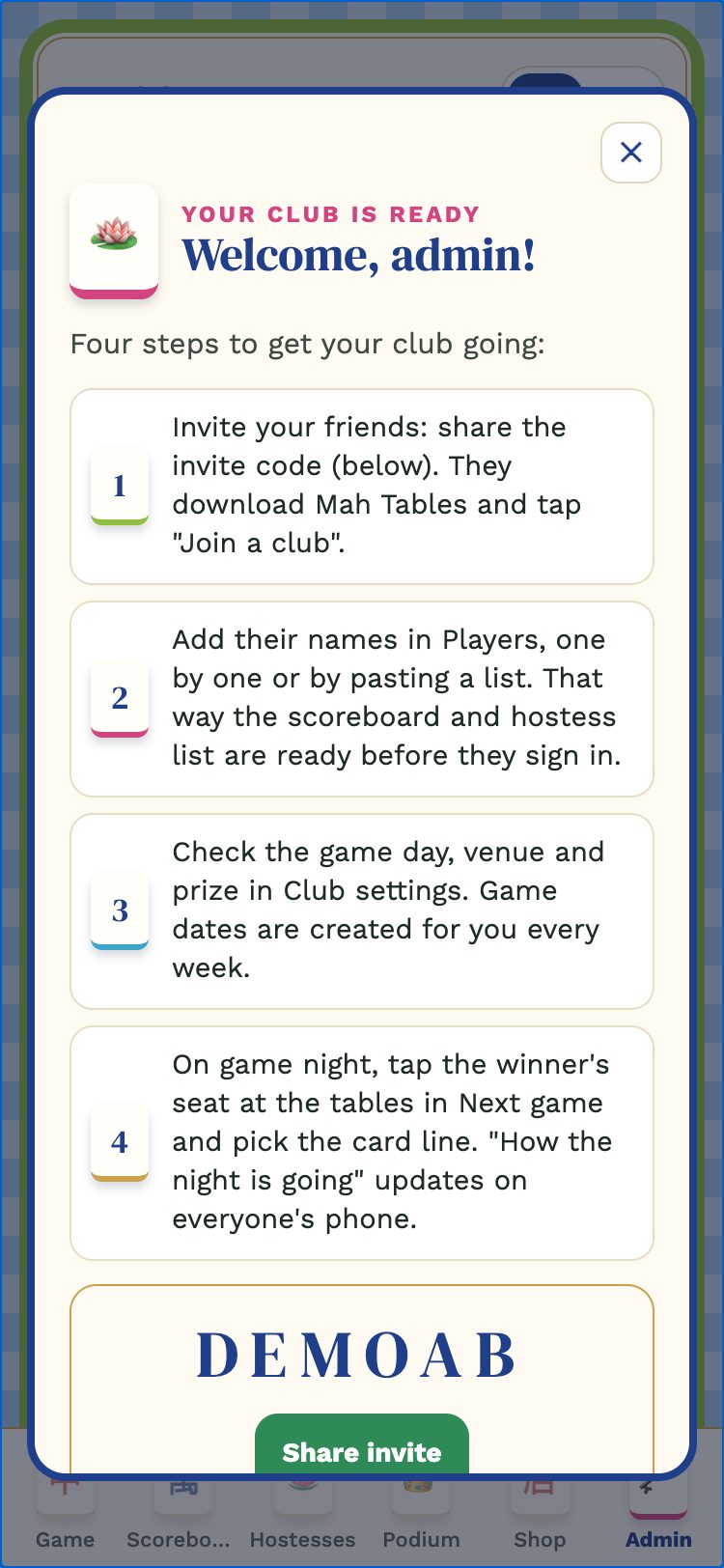
The welcome window when you create your club
1

Create your club

Tap Create my club, type the name, the game day (fixed every week or flexible), the game hours, the usual venue and, if your club collects a monthly contribution, how it is paid (for example your Zelle). You become the admin: the only person who sees money and settings.

When you finish, a welcome window shows the four first steps and your invite code. Everything can be changed later in Club settings: time zone, game hours, reminders and rules.
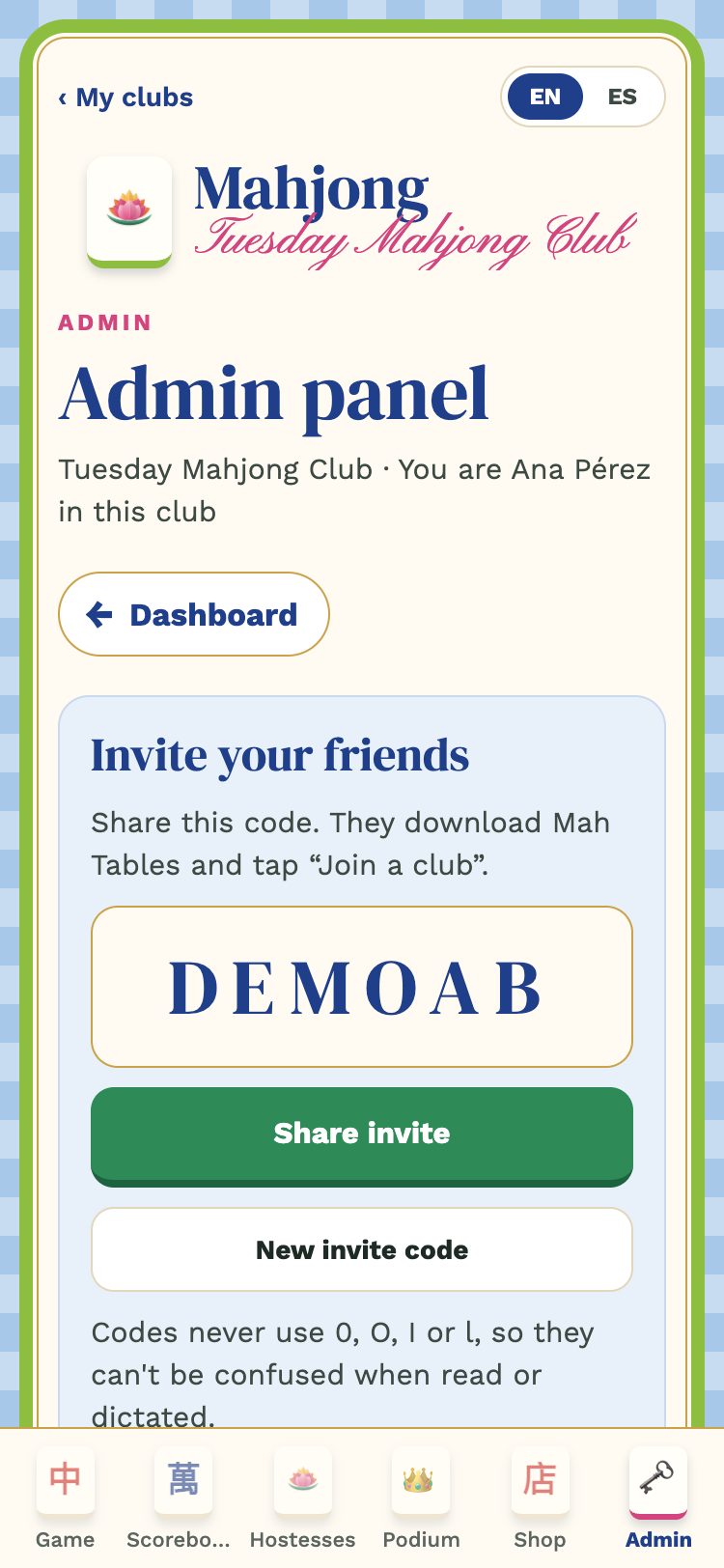
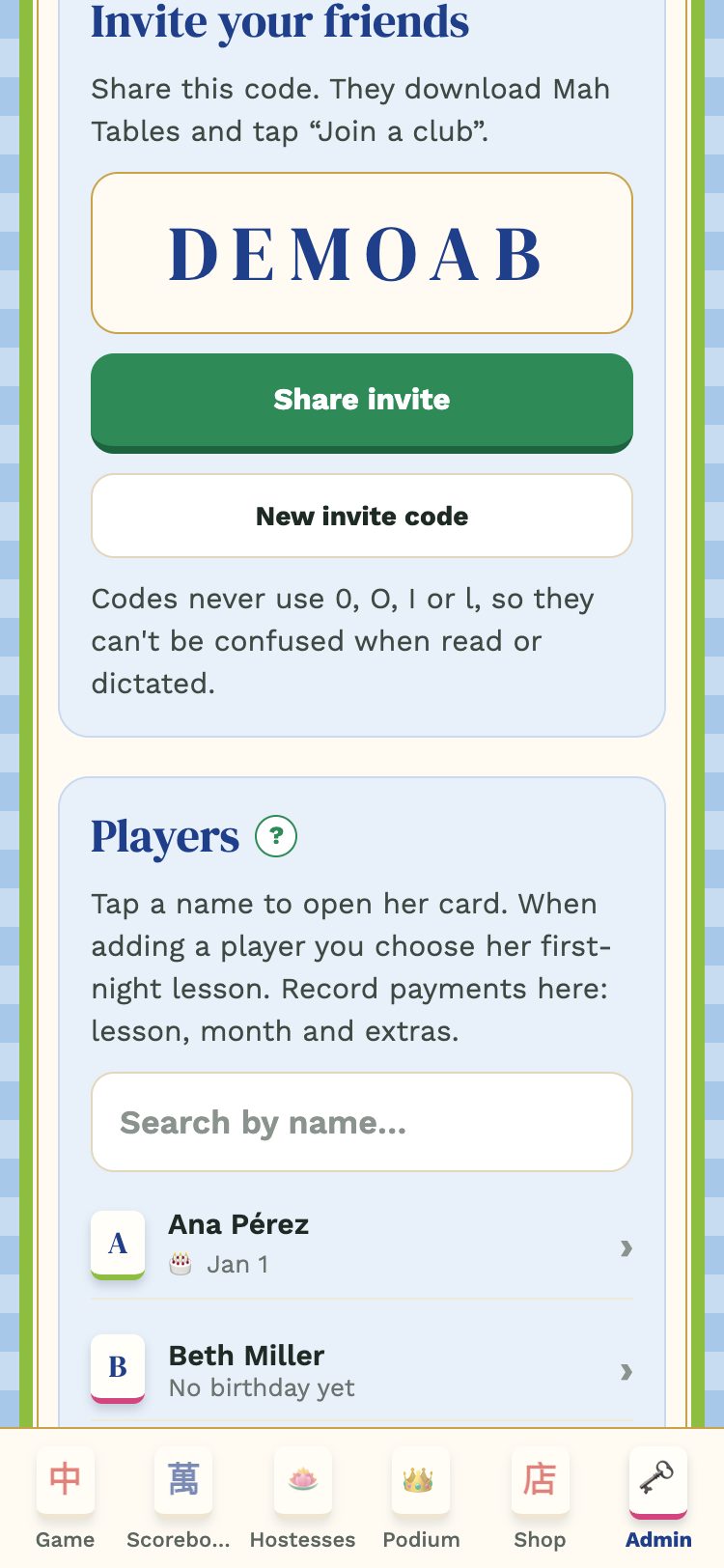
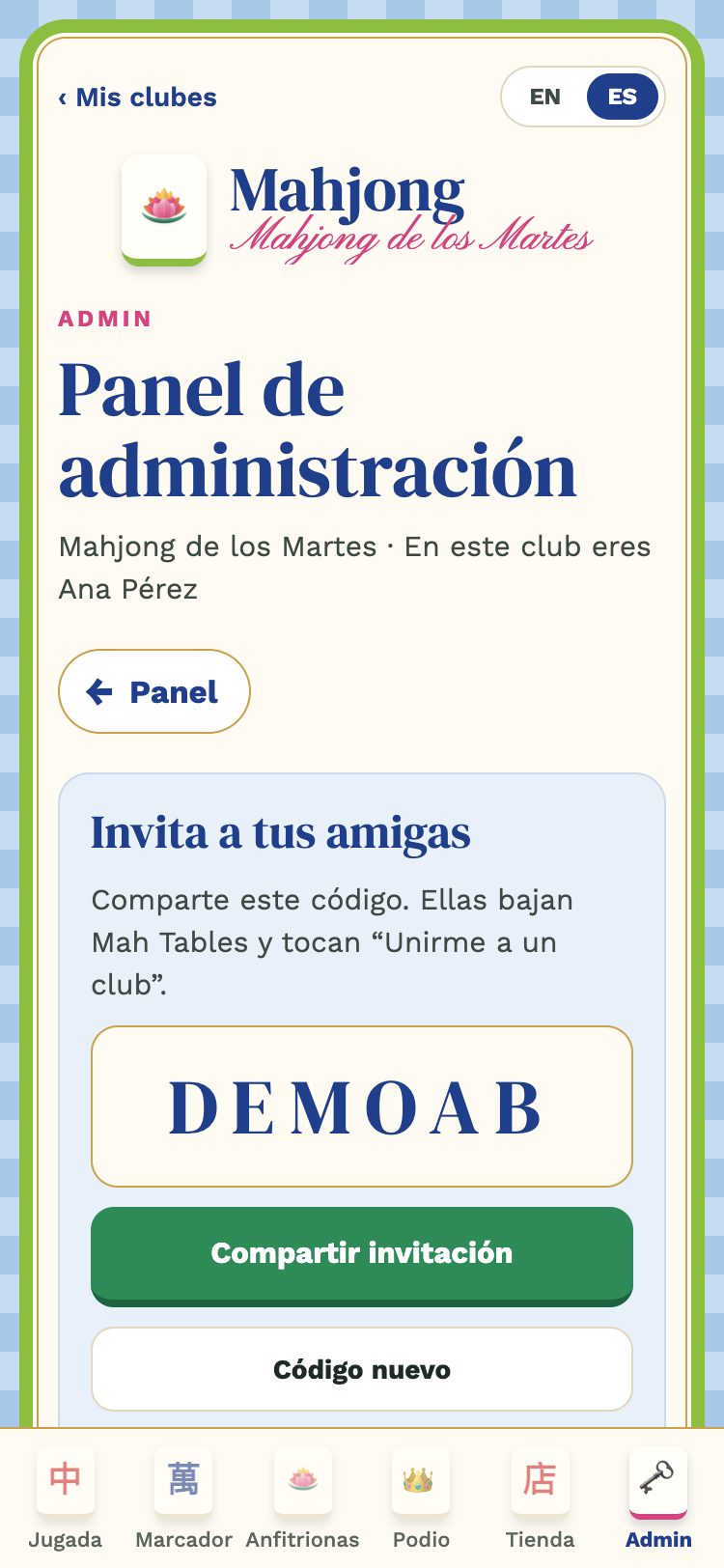
Players section: your code and the Share invite button
2

Invite your friends

Your club has a 6-letter code. You find it in your panel, tile Players (and in Club settings). Share invite sends a ready-made message by text, WhatsApp or email: the App Store link, the three steps and the code. Each friend downloads Mah Tables, signs in with Apple, Google or her email (an 8-digit code, no passwords) and types the code.

The first thing the app asks her is Who are you?: she picks her name from the list, just once. From then on everything is recorded under her name.

Tip: add the players' names before sending the code, so each one finds her name in the list when she signs in.
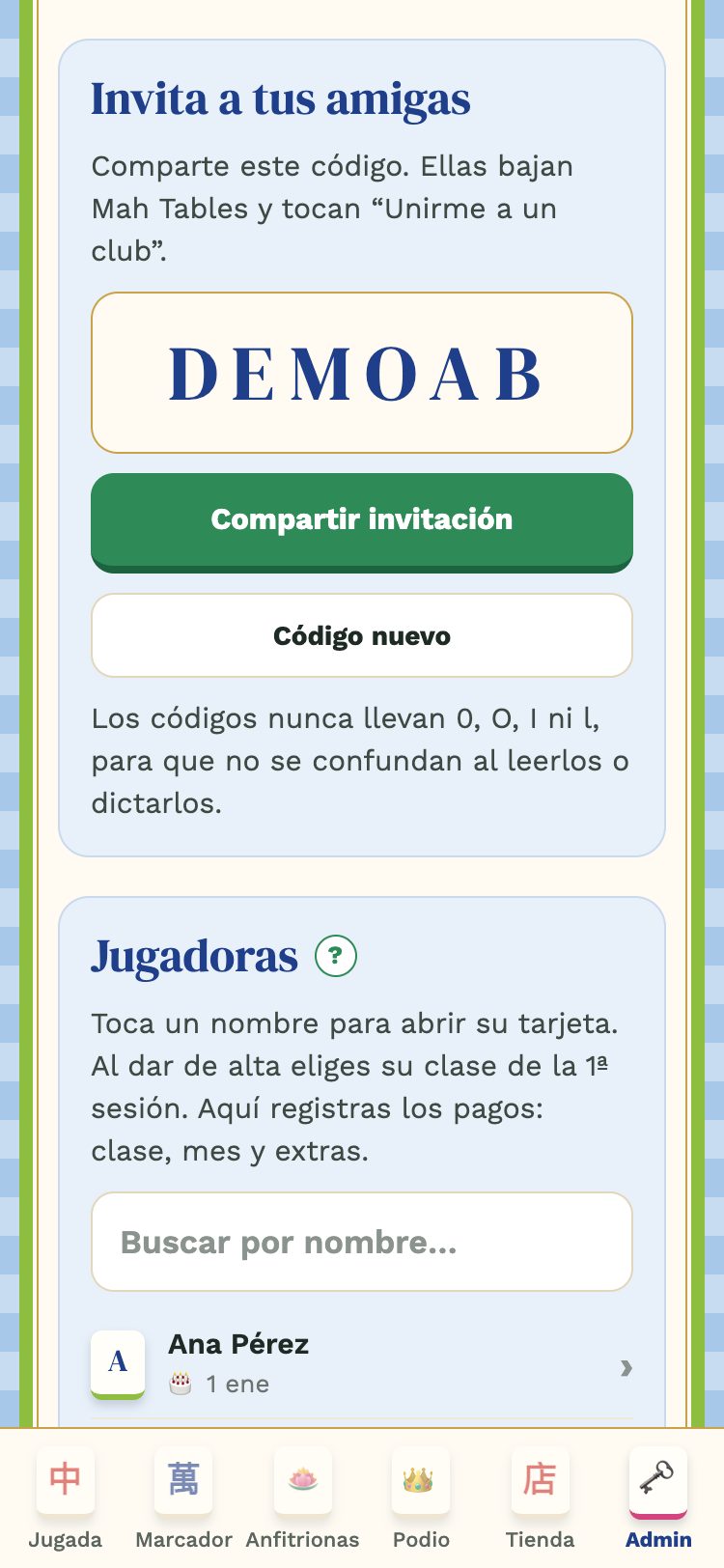
The club list in the Players section
3

Add the players

In Players, add them one by one or tap Paste a list of names and paste the whole list from a text or chat, one name per line. Names are first name or nickname plus last name, so no two players get mixed up. You can also add her birthday and whether she takes a lesson in her first session.

With the search box you find anyone by name. Tap a name to open her card (next step).

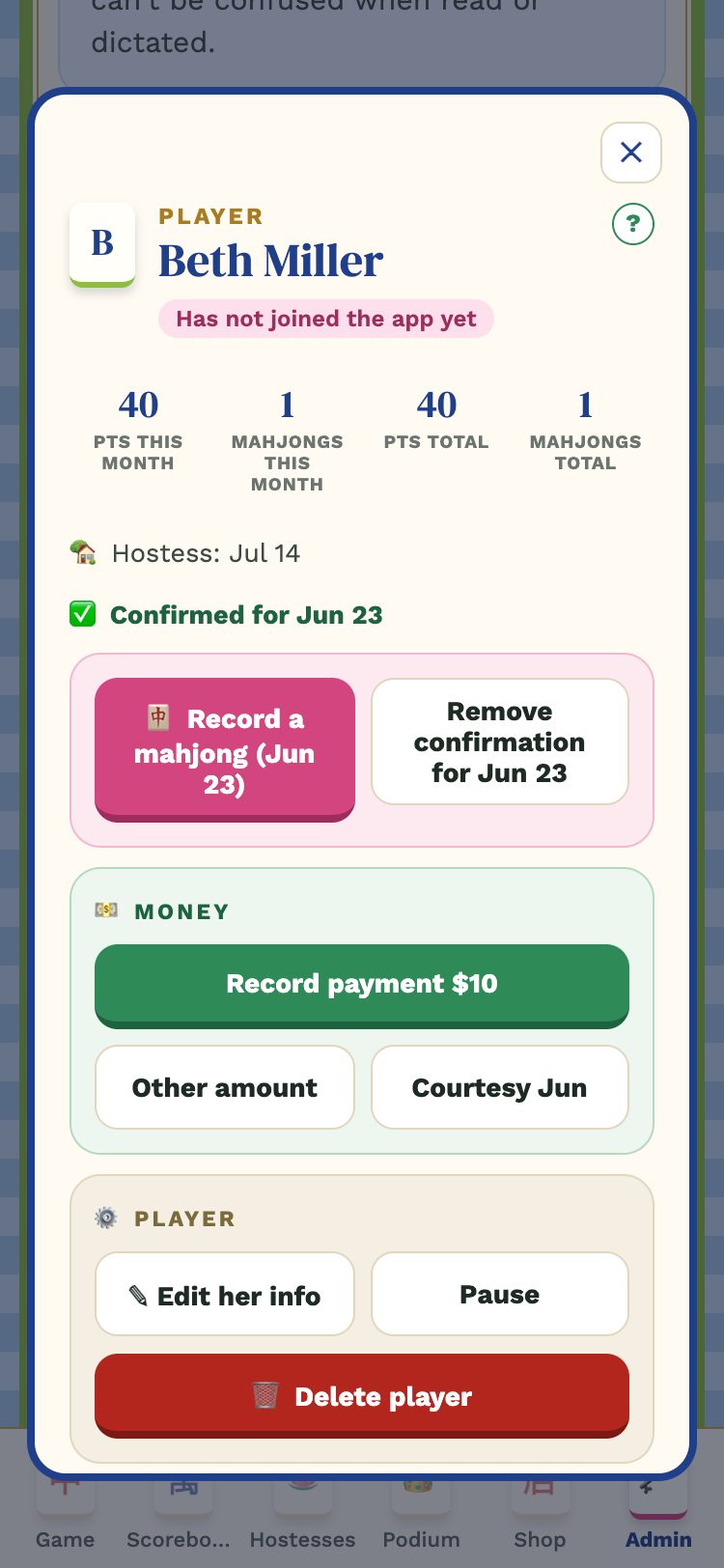
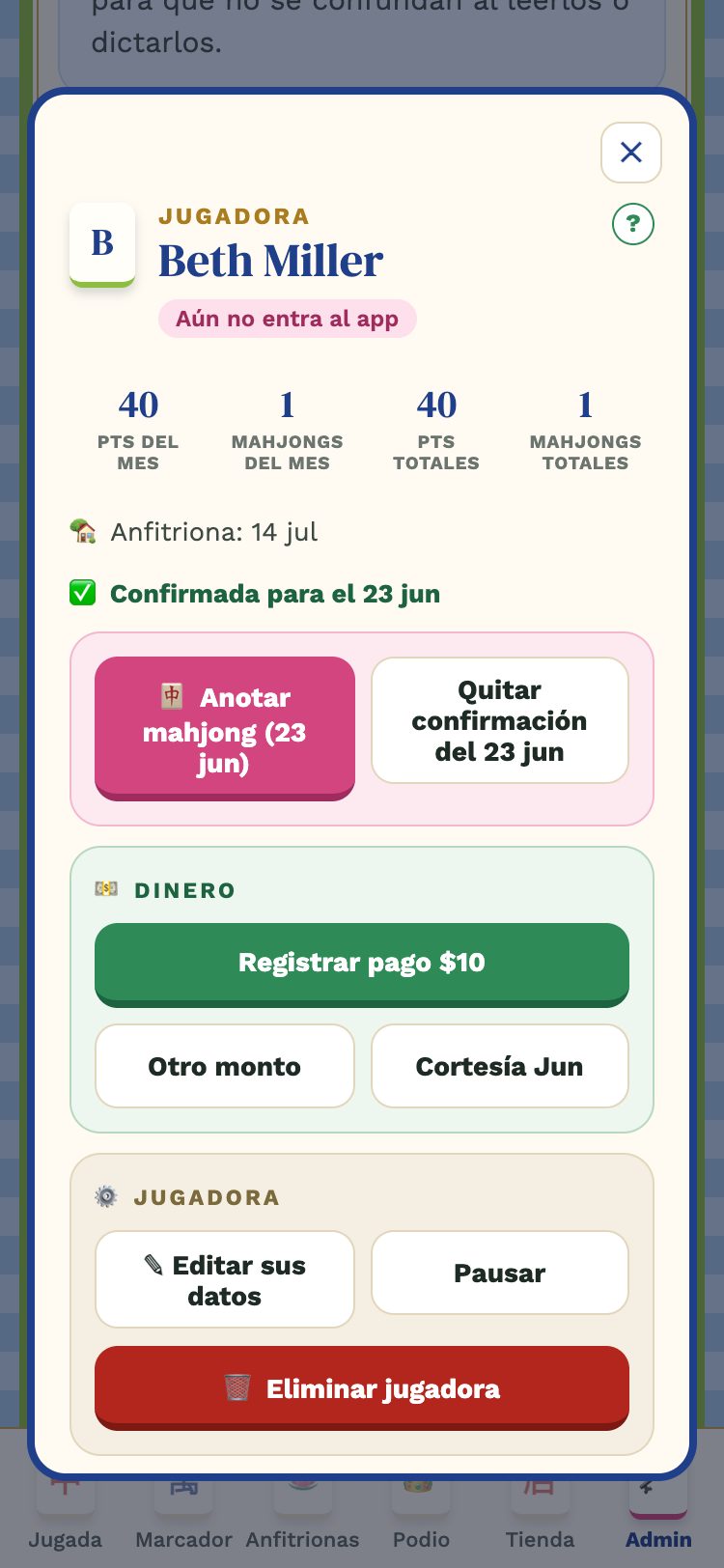
A player's card, as the admin sees it
4

A player's card

At the top, in a pink box, what matters most on game night: Record a mahjong and, if she is not confirmed yet, Confirm for [date] (or Remove confirmation if she is). Then two boxes:

  • Money: Record payment (the month that is due), Other amount, Courtesy, Give a pass and Event payment. The last two only show up when they apply.
  • Player: Edit her info, Pause and, in red, Delete player.

Further down: Her latest mahjongs (the ones from the current game), her badges and her statement. Each payment and each mahjong has a small square ✕ to remove it. At the bottom, two buttons open their own window: Table preferences (who she likes sitting with) and Log (the changes to her mahjongs and payments in the last 90 days).

Delete player takes her off lists, tables and notices but keeps her history (mahjongs, payments, hostess dates); you can bring her back from Edit her info (Active player). If she already uses the app, the same button removes her from the club instead.

Sub-admins only see Record a mahjong on a card. Players only see Confirm for themselves.
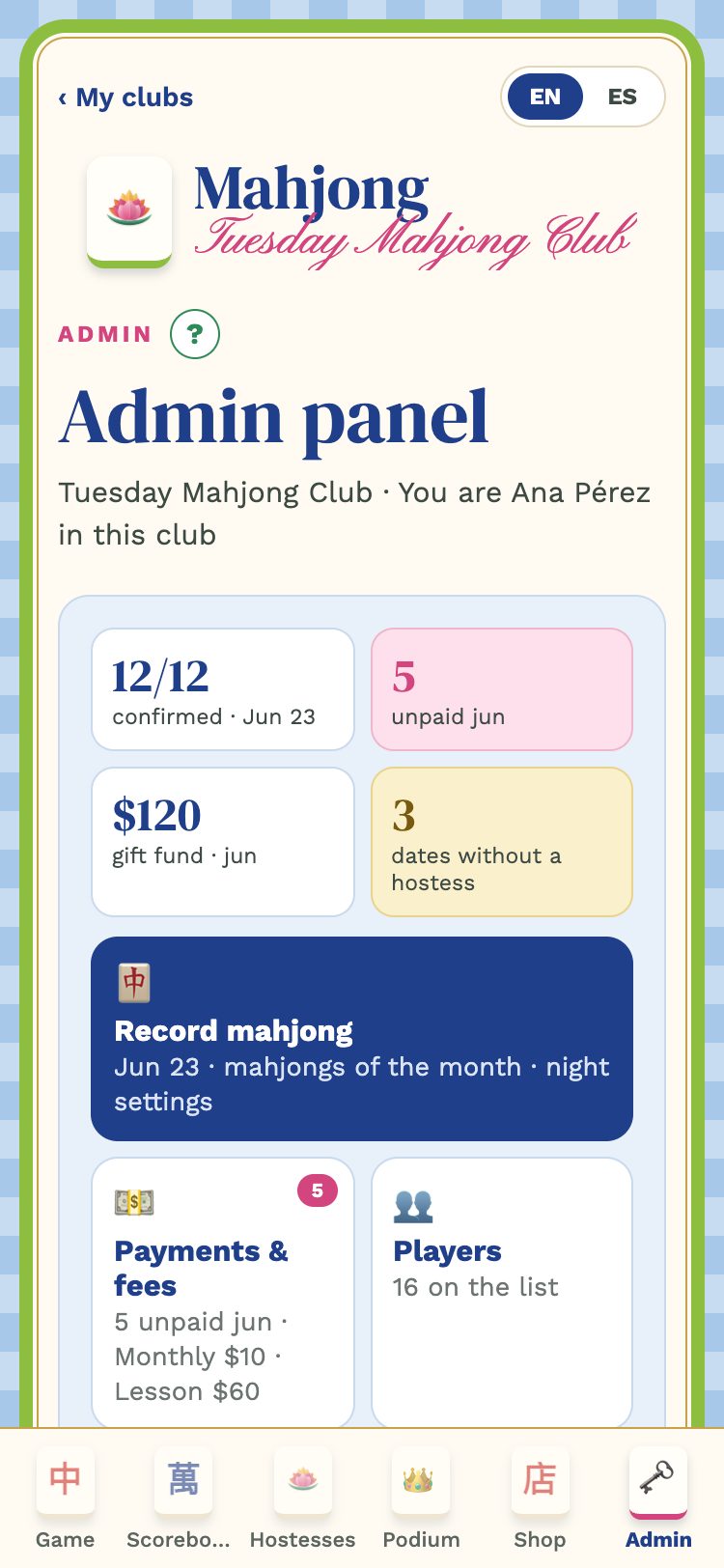
The admin panel tiles
5

Your panel

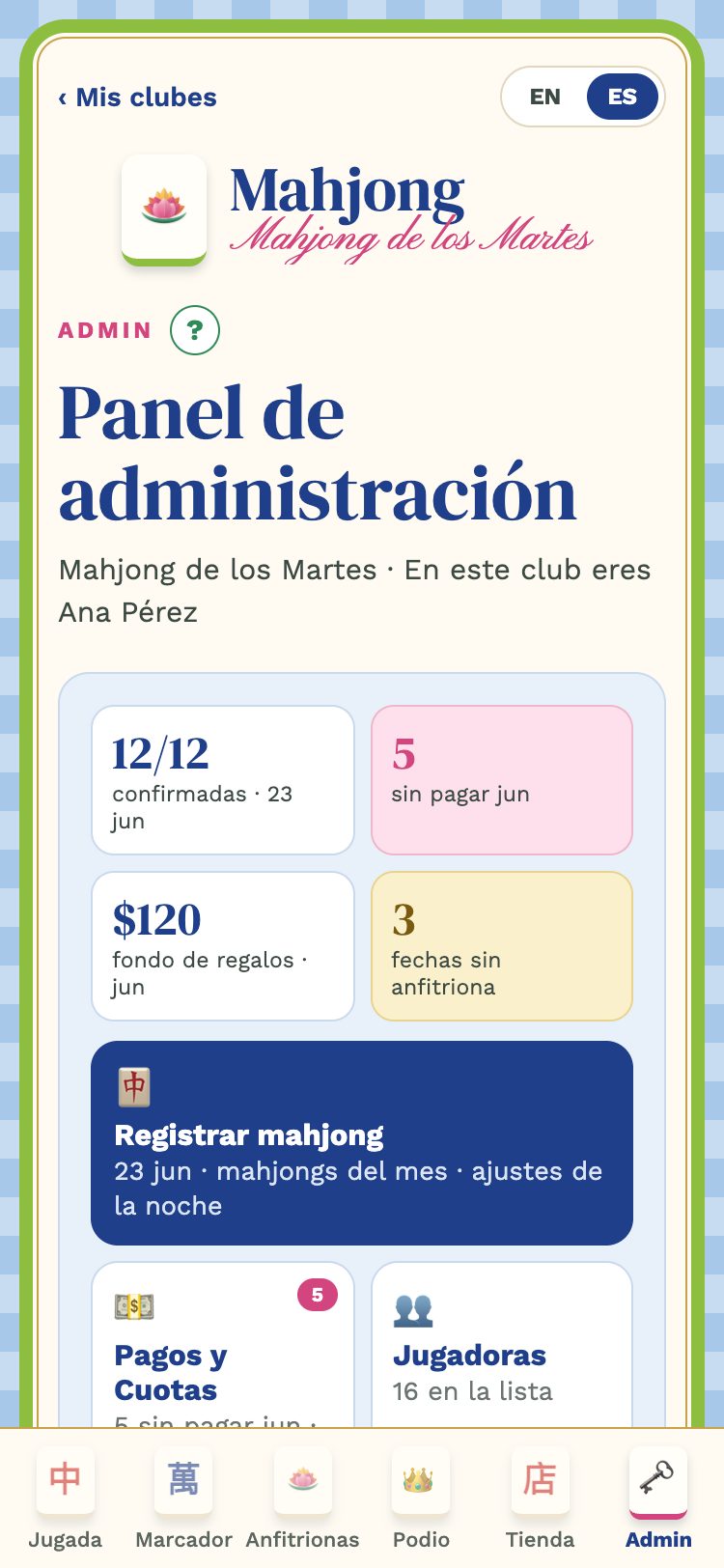
The Admin tab (the last one) is your panel. At the top, today's numbers: confirmed, who hasn't paid the month, the gift fund and dates without a hostess. Below, one tile per section:

Record mahjonggame night and night settings
Payments & feeswho owes, payments, monthly fee, extras
Playersthe club list and the invite code
Calendardates and venues
Guestsone-night passes
Newsnotices to the club
Pollquestion and vote
Monthly reportattendance and income, PDF
Activity logwho recorded what
Club styleone of 8 looks
Club settingsname, day, hours, venue, rules
Pendingwhat needs your attention

On the players' side (Game, Scoreboard, Hostesses, Podium) you see exactly what they see.

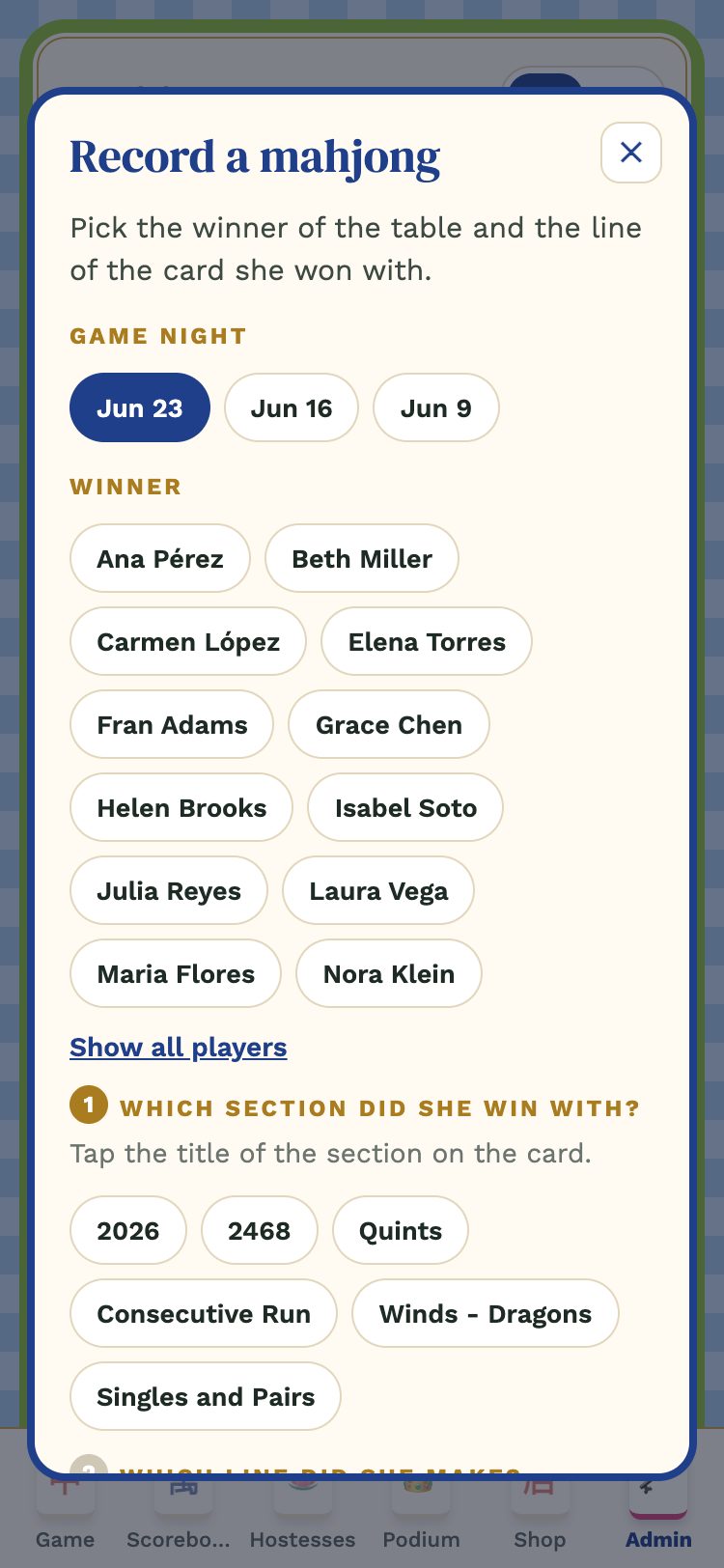
The Record a mahjong window
6

Game night

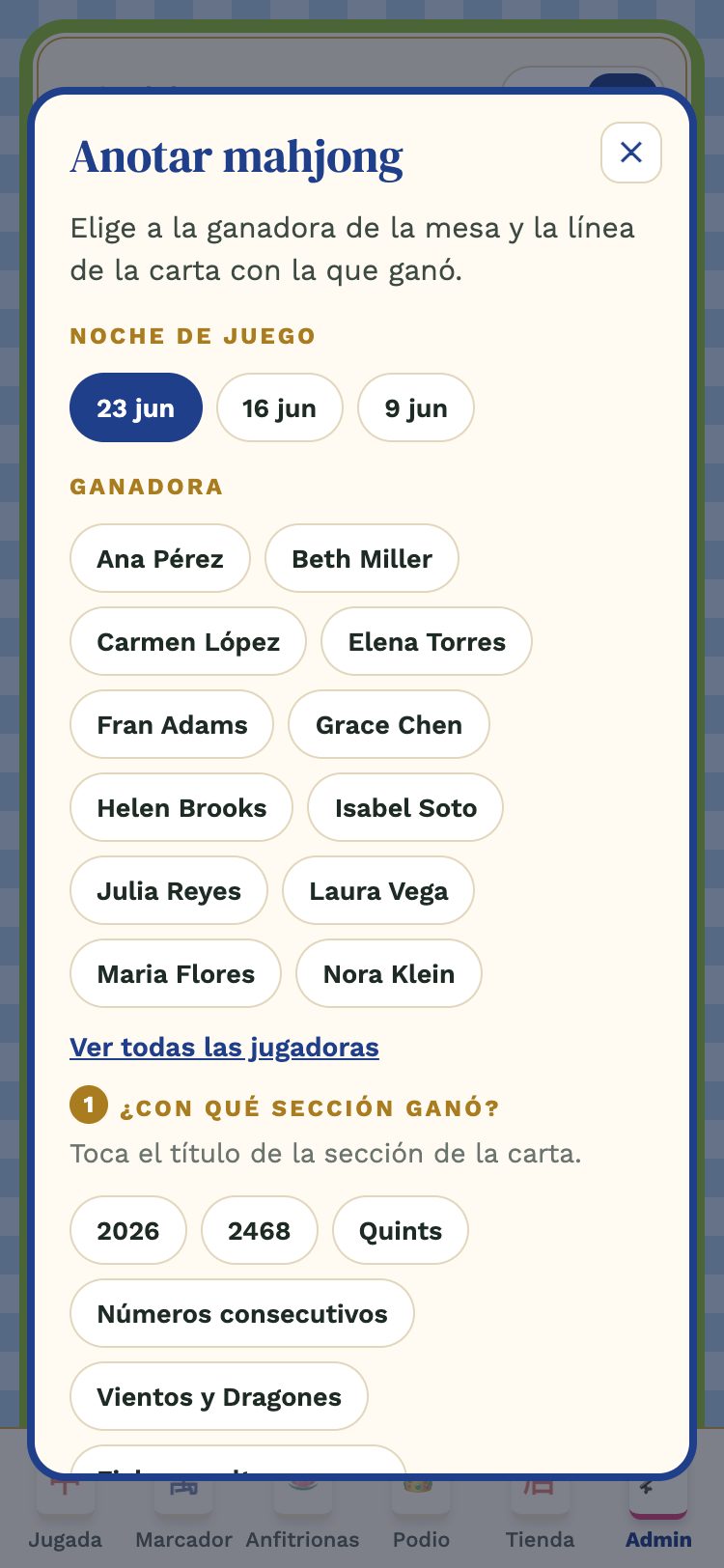
Open the Record mahjong tile and tap Record a mahjong, or tap the winner's seat at the tables in Next game. For each winner you pick the night (tonight comes selected) and the winner: tonight's confirmed players come first, Show all players opens the whole list, and once she is chosen Another player ▾ lets you change her. Then the card line (next step). Points come from this year's NMJL card (NMJL: the National Mah Jongg League, which publishes the official card every year) and How the night is going updates on everyone's phone instantly.

  • Night settings: seats in tables of 4, venue, game-day fee and passes for anyone blocked.
  • Tables: with Suggest tables the app seats by level and preferences; you confirm table by table and each player gets her table by push.
  • Game-day fee: if your club charges per game, you tick who paid.
No signal: if the house has no reception, what you record is saved on your phone and sent by itself when the signal returns.
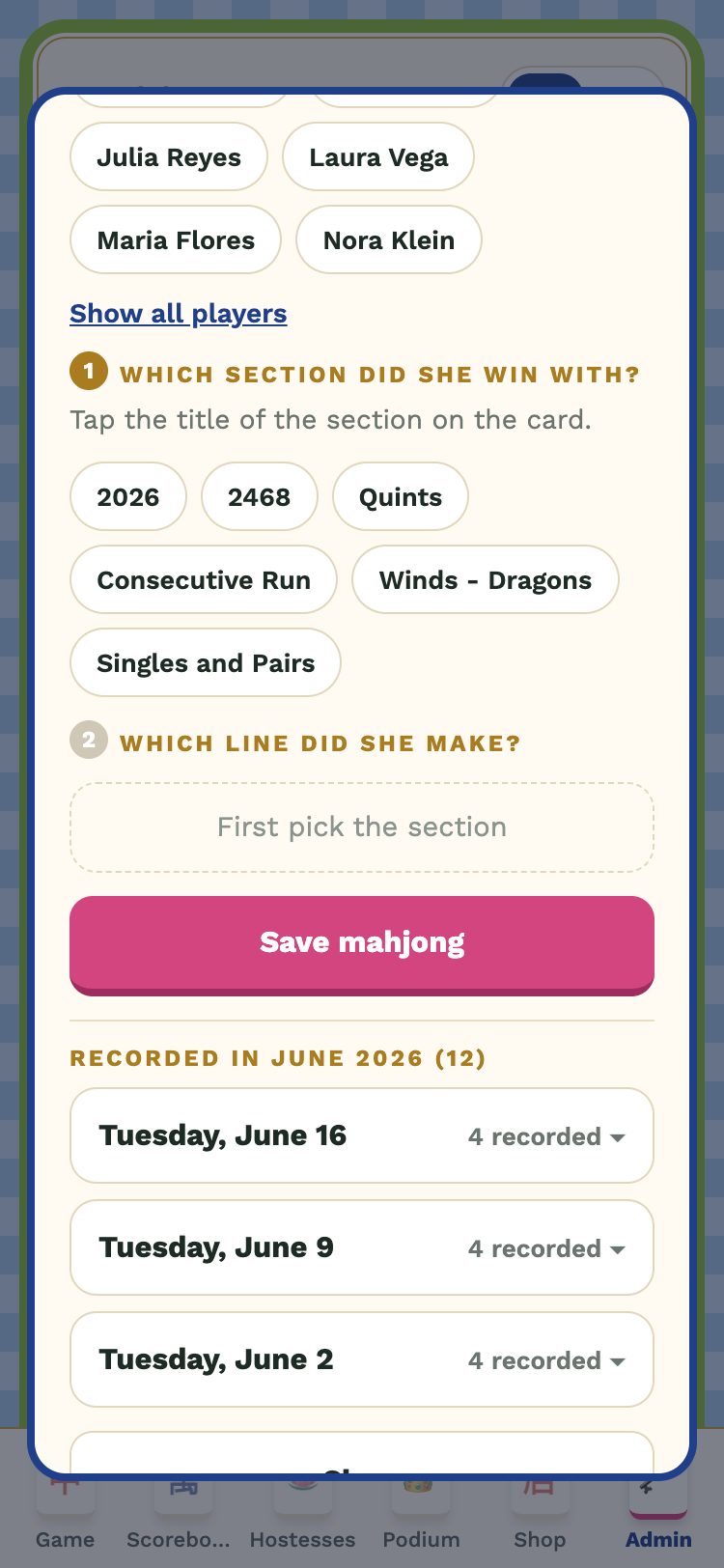
Record a mahjong: section, line and the log of the month
7

Section and line, in two steps

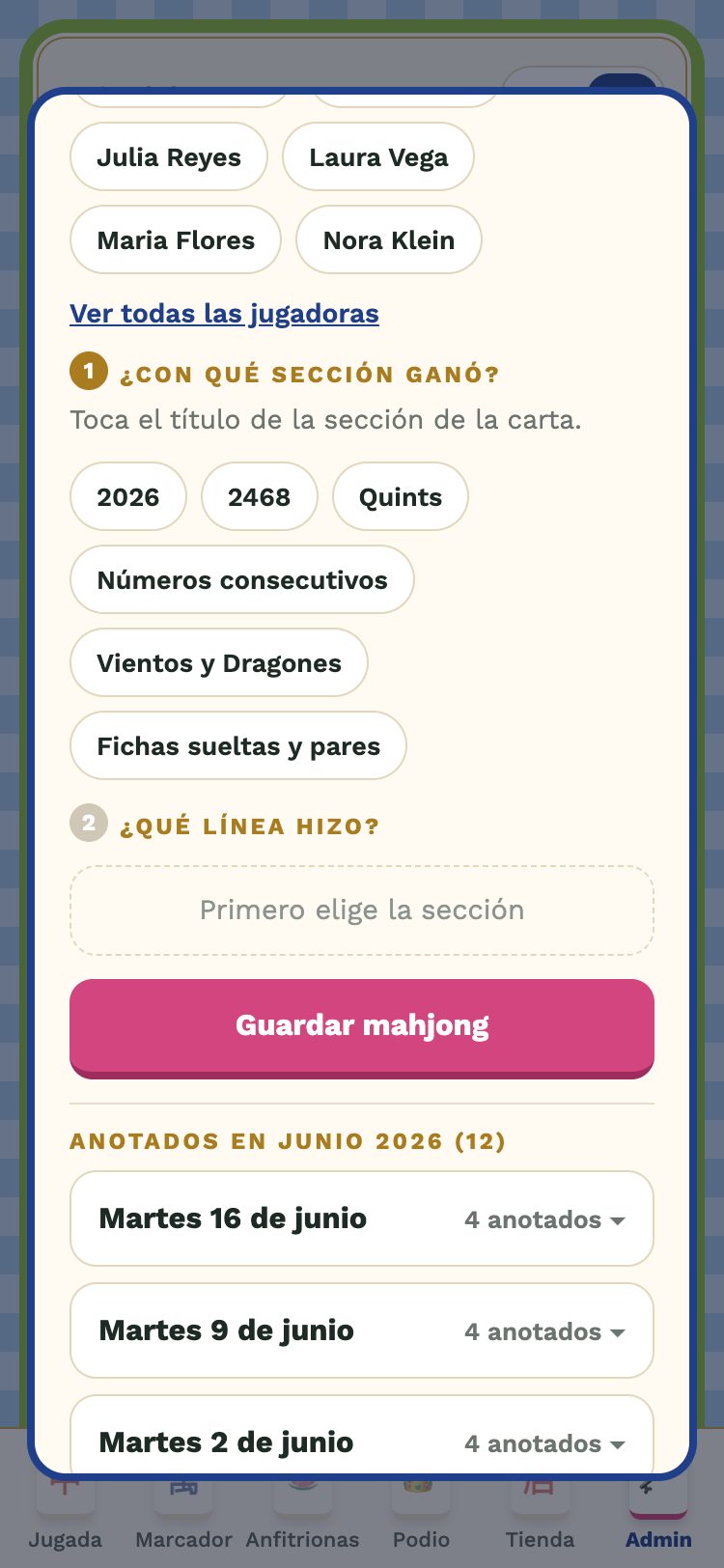
Below the winner the window guides you with two numbered steps: ① Which section did she win with? (tap the title of the section on the card, for example 2468 or Consecutive Run) and ② Which line did she make? (tap the line with its points). Before you save, a green summary says You are about to record: the winner, the section and the line, so you can check it. Then Save mahjong.

At the bottom, Recorded in [month] lists the month by night: tap a date to open it and see what was recorded. Each line has a small square ✕ to remove it if you made a mistake; record it again and it is fixed. Everything stays in the activity log.

Payments section
Payments section
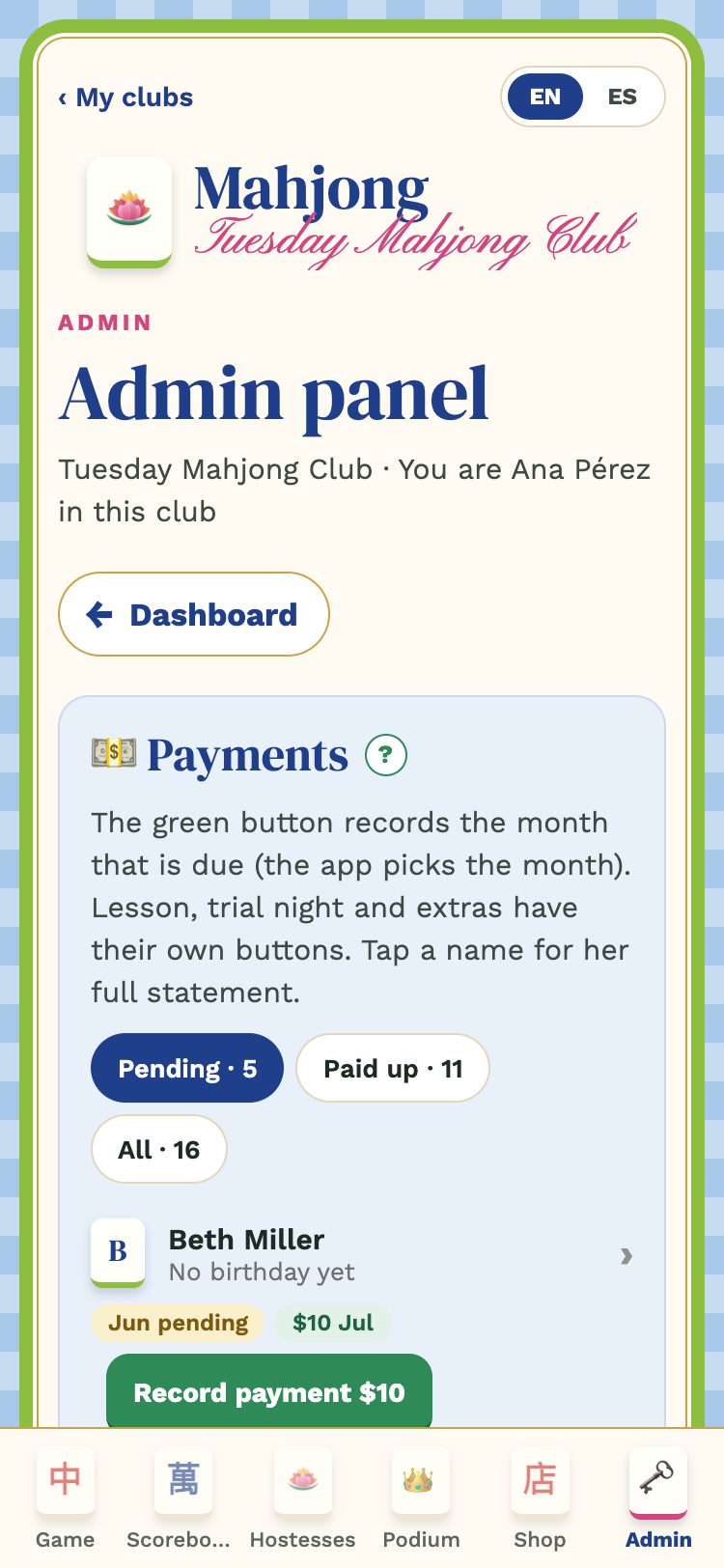
8

Payments

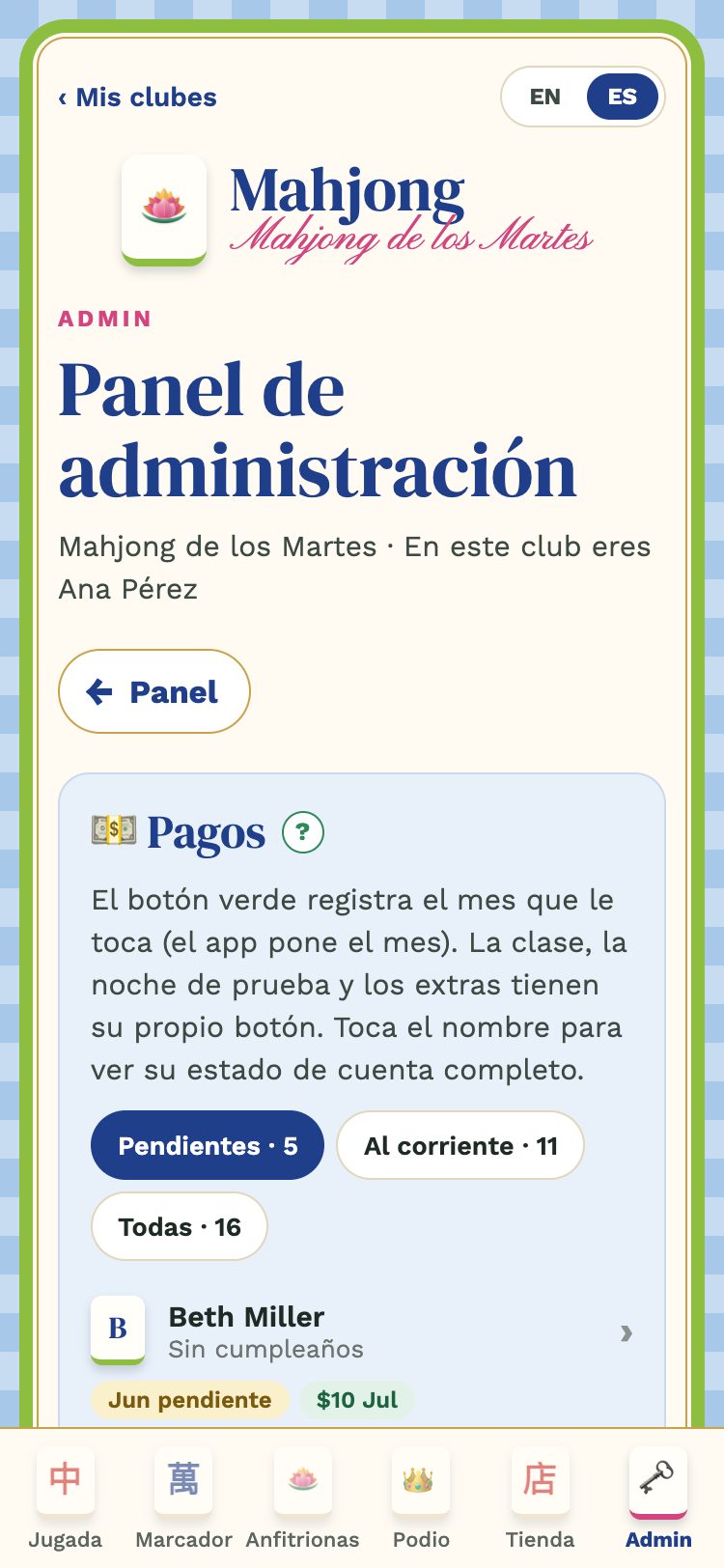
In Payments & fees you see who owes and who is paid up. The green button registers the month that is due for each one: always the oldest first, no skipping ahead. Months without a game night are not charged, and a member who joins after the deadline gets a grace period for her first month. Other amount records a different payment. Whoever owes sees a How to pay box in Next game with your instructions. What you collect adds to the gift fund everyone sees on the Scoreboard.

  • Fees: set the monthly fee, the lesson price and create extra contributions with a deadline.
  • Monthly report: income by concept, nights and attendance; Export PDF to send it by text or email.
  • Pause: from a player's card, if she travels or is ill, those months are not charged.
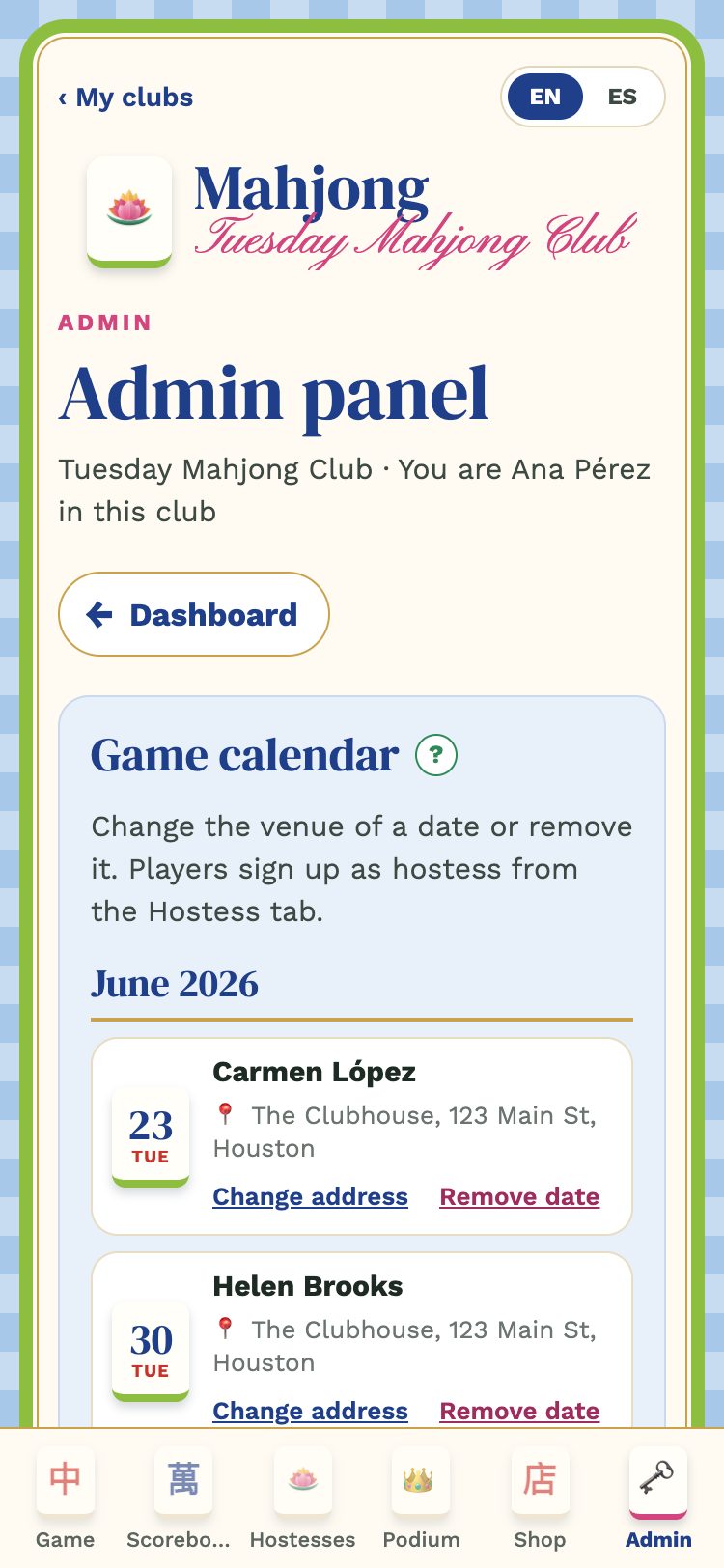
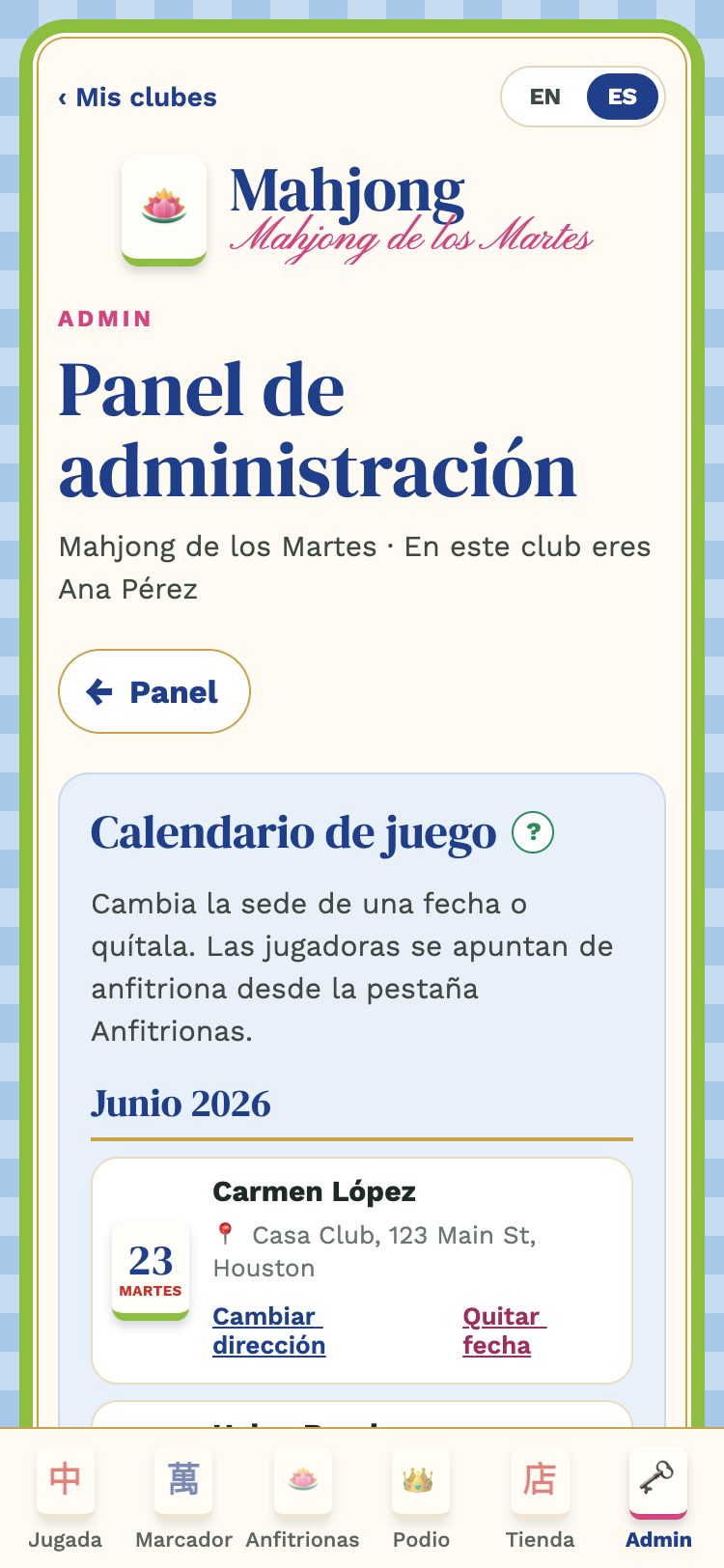
Game calendar in the panel
9

Calendar and hostesses

With a fixed day, game dates are created by themselves every week. In Calendar you change the venue of a date or remove it if there is no game that week.

Players sign up as hostess in the Hostesses tab, which also shows who has hosted and who hasn't yet; your panel shows how many dates are still open. Two days before each game the app sends a nudge only to those who haven't said whether they're coming. Right after the month's last game, the champion of the month is crowned in the Podium.

10

Notices, poll and guests

  • News: notices that show on Next game; with an expiry date they disappear by themselves. Past notices stay in the history, and Clone reuses one for next year.
  • Poll: a question with 2 to 6 options; players vote on the Scoreboard and with a deadline it closes by itself.
  • Guests: someone comes for one night with a pass; if she stays, make her a member with one tap.
  • Sub-admins: from a player's card; they only record mahjongs. They get a notice with their guide.
  • Backup admin: in Players → Members; she inherits the club if you stop using the app.
  • Activity log: who recorded what and when, to settle any doubt.
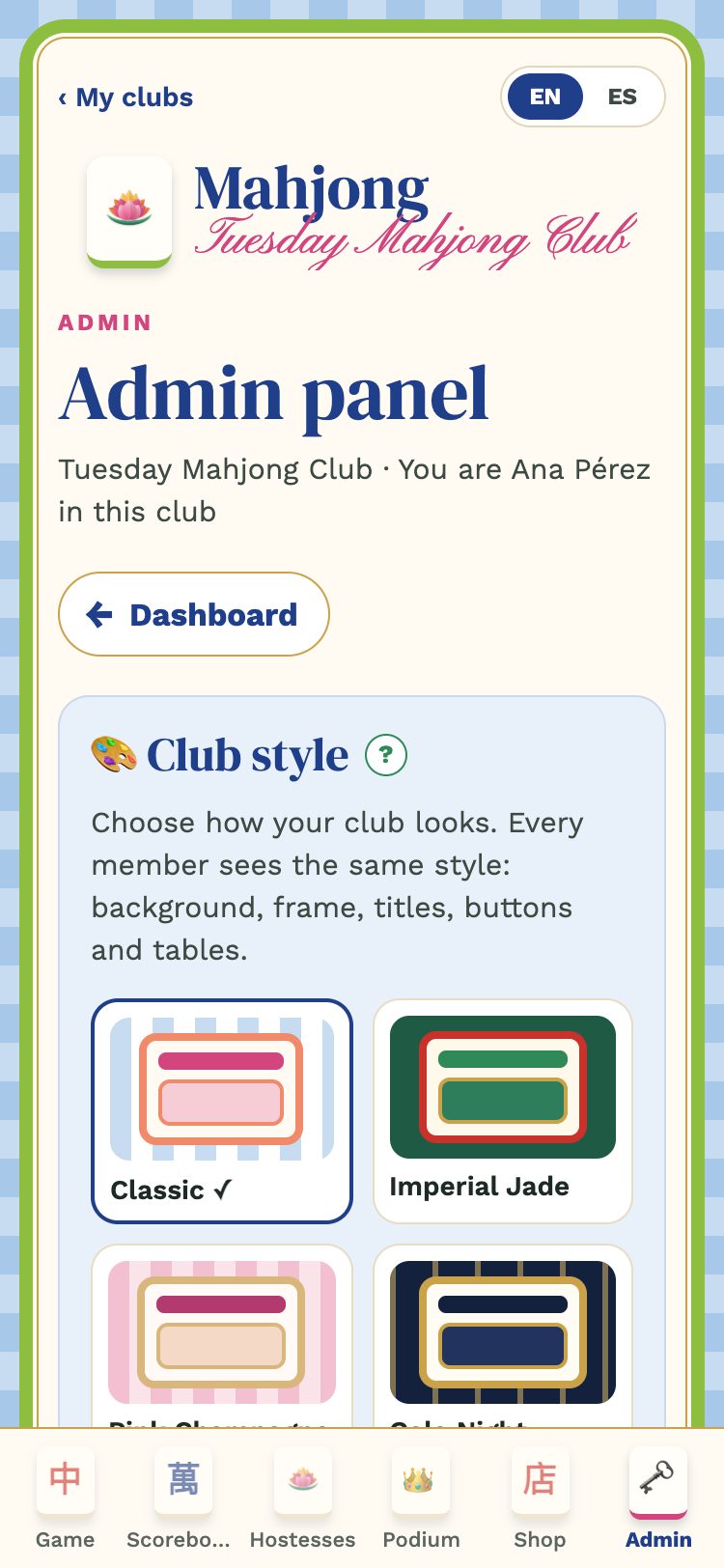
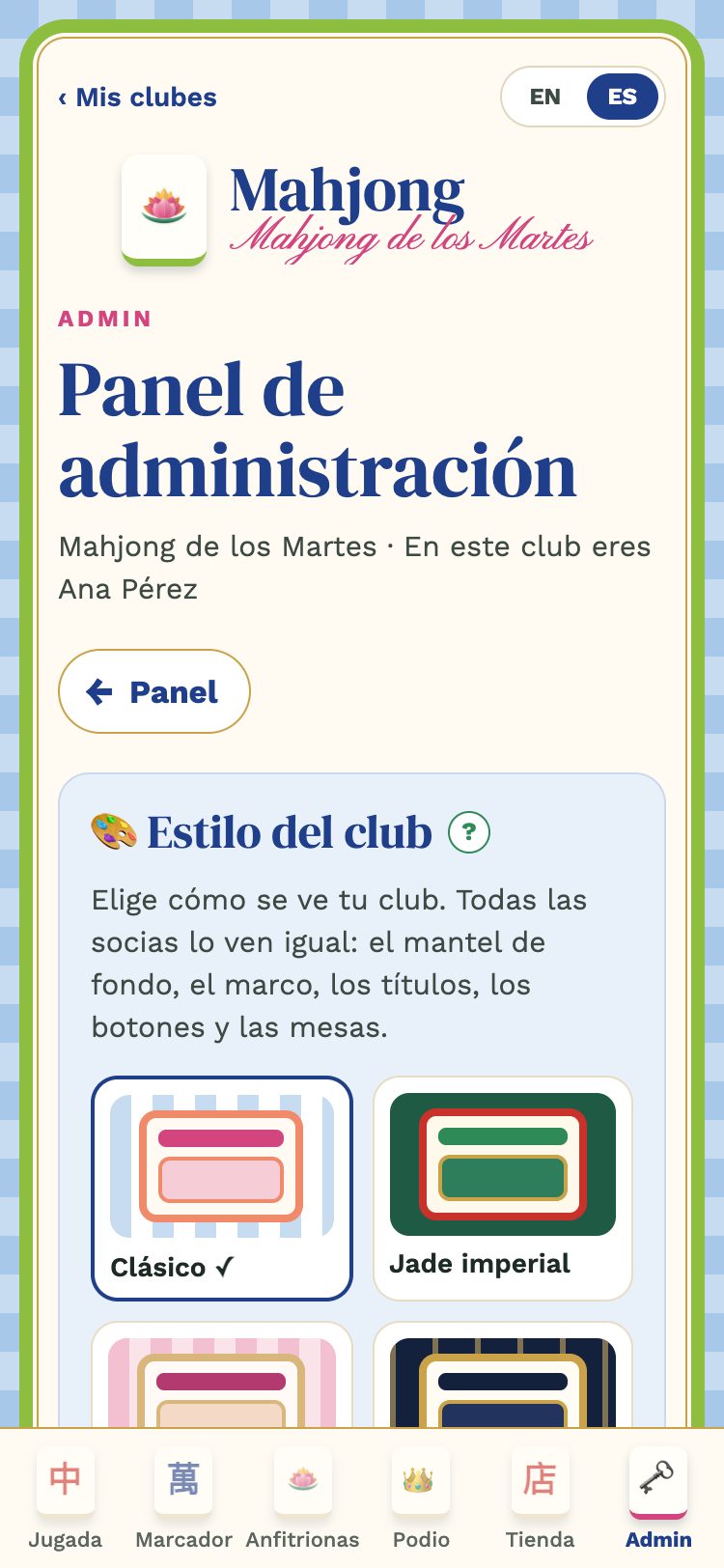
Club style: eight looks to choose from
11

Club style

In Club style pick one of eight looks: the tablecloth in the background, the frame, the colors of titles and buttons, and the look of the tables. Everyone in the club sees the same style. Change it whenever you like, for a season or for a party.

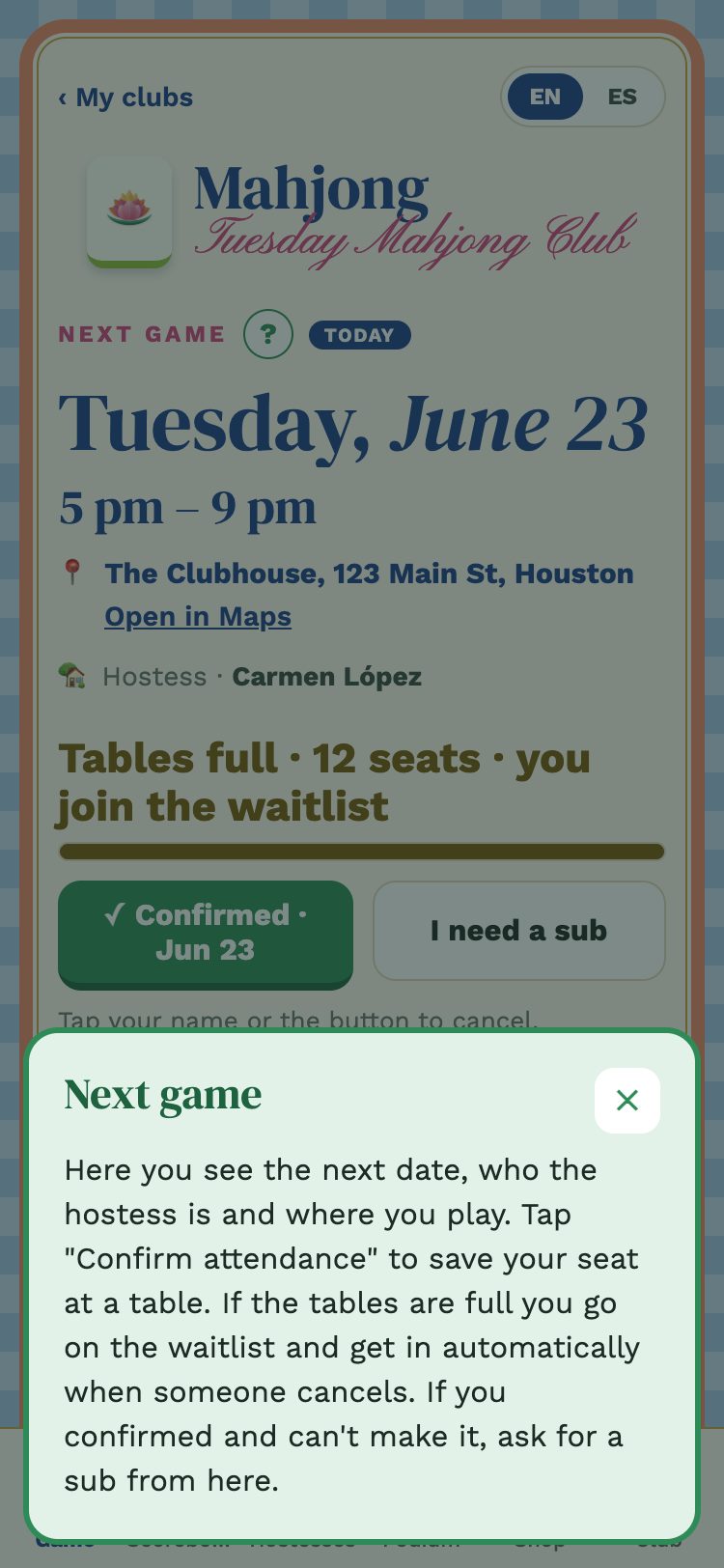
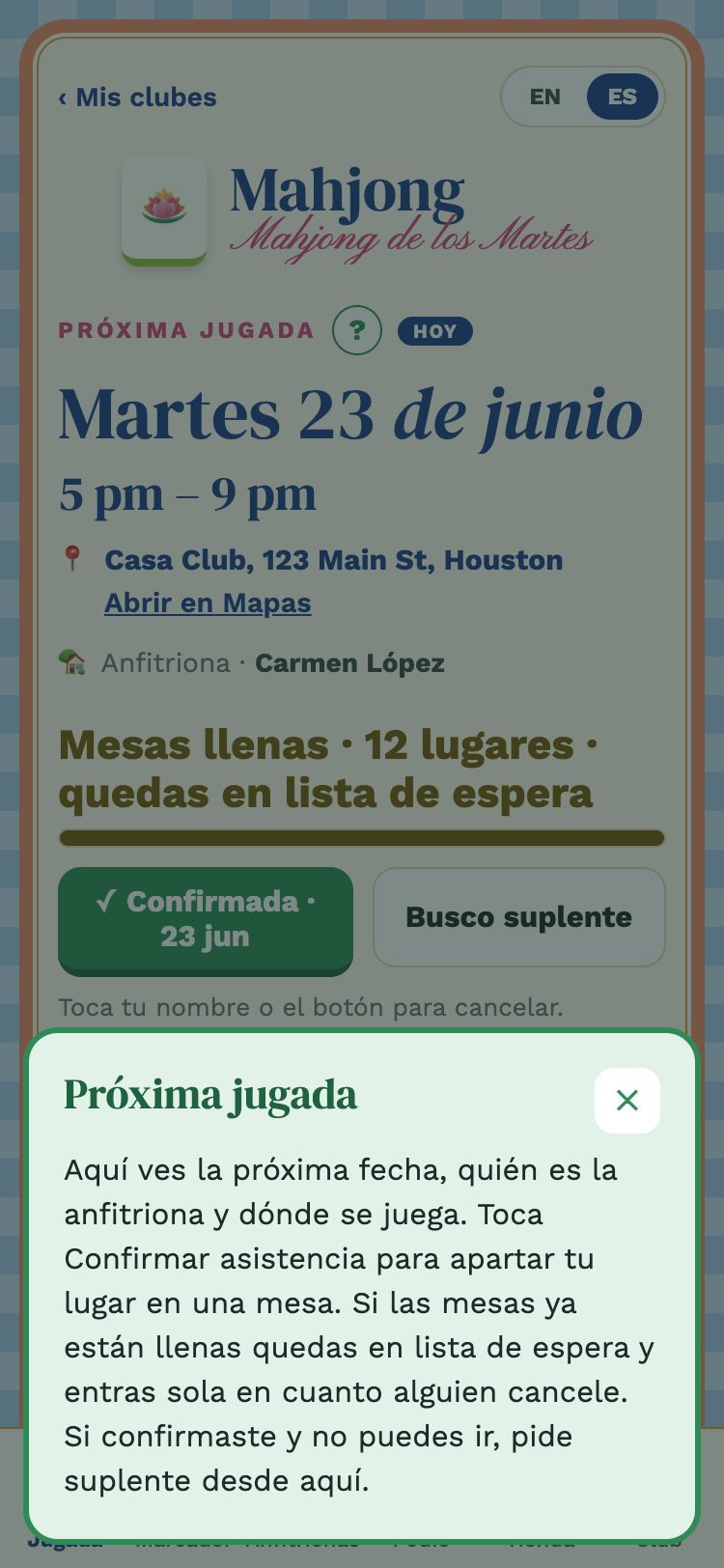
The green help window
12

The green "?"

On every screen and every panel section there is a ? button next to the title. Tap it and a window explains that place. If a player gets lost, that button is the fastest answer.

You can reopen this guide any time from Club settings → Admin guide.

Questions?

Write to support@mahtables.com with your club's name. We usually reply within one business day.

GUÍA · ADMINISTRADORA

Guía de la administradora

Todo lo que necesitas para llevar tu club con Mah Tables, paso a paso y con capturas del app.

La bienvenida al crear tu club
1

Crea tu club

Toca Crear mi club, escribe el nombre, el día de juego (fijo cada semana o flexible), el horario, la sede habitual y, si tu club cobra una aportación mensual, cómo se paga (por ejemplo tu Zelle). Quedas como administradora: la única persona que ve el dinero y los ajustes.

Al terminar aparece la ventana de bienvenida con los cuatro pasos de arranque y tu código de invitación. Todo se puede cambiar después en Ajustes del club: zona horaria, horario de juego, recordatorios y reglas.

Sección Jugadoras: tu código y el botón Compartir invitación
2

Invita a tus amigas

Tu club tiene un código de 6 letras. Lo encuentras en tu panel, mosaico Jugadoras (y en Ajustes del club). Compartir invitación manda un mensaje ya escrito por mensaje de texto, WhatsApp o correo: el enlace a la App Store, los tres pasos y el código. Cada amiga baja Mah Tables, entra con Apple, Google o su correo (código de 8 dígitos, sin contraseñas) y escribe el código.

Lo primero que le pregunta el app es ¿Quién eres?: elige su nombre de la lista una sola vez. Desde entonces todo queda a su nombre.

Consejo: agrega los nombres de las jugadoras antes de mandar el código, así cada una encuentra su nombre en la lista al entrar.
La lista del club en la sección Jugadoras
3

Agrega a las jugadoras

En Jugadoras, agrégalas una por una o toca Pegar lista de nombres y pega la lista completa desde un mensaje o chat, un nombre por renglón. Los nombres van con nombre o apodo más apellido, para que no se confundan dos jugadoras. También puedes poner su cumpleaños y si lleva clase en su primera sesión.

Con el buscador encuentras a cualquiera por su nombre. Toca un nombre para abrir su tarjeta (siguiente paso).

La tarjeta de una jugadora, como la ve la administradora
4

La tarjeta de una jugadora

Arriba, en un recuadro rosa, lo más importante de la noche de juego: Anotar mahjong y, si todavía no está confirmada, Confirmar para el [fecha] (o Quitar confirmación si ya lo está). Después, dos recuadros:

  • Dinero: Registrar pago (el mes que le toca), Otro monto, Cortesía, Dar pase y Pago evento. Los dos últimos solo salen cuando aplican.
  • Jugadora: Editar sus datos, Pausar y, en rojo, Eliminar jugadora.

Más abajo: Sus últimos mahjongs (los de la jugada en curso), sus insignias y su estado de cuenta. Cada pago y cada mahjong lleva un botón cuadrado ✕ para quitarlo. Al final, dos botones abren su propia ventana: Preferencias de mesa (con quién le gusta sentarse) y Bitácora (los cambios en sus mahjongs y pagos de los últimos 90 días).

Eliminar jugadora la saca de listas, mesas y avisos pero conserva su historia (mahjongs, pagos, fechas de anfitriona); la regresas desde Editar sus datos (Jugadora activa). Si ya usa el app, el mismo botón la quita del club.

Las subadministradoras solo ven Anotar mahjong en una tarjeta. Las jugadoras solo ven Confirmar para ellas mismas.
El panel de administración en mosaico
5

Tu panel

La pestaña Admin (la última) es tu panel. Arriba, los números del día: confirmadas, quién no ha pagado el mes, el fondo de regalos y las fechas sin anfitriona. Abajo, un mosaico por sección:

Registrar mahjongla noche de juego y sus ajustes
Pagos y Cuotasquién debe, cobros, mensualidad, extras
Jugadorasla lista del club y el código
Calendariofechas y sedes
Invitadaspases de una noche
Noticiasavisos al club
Encuestapregunta y votación
Reporte del mesasistencia e ingresos, PDF
Bitácoraquién anotó qué
Estilo del clubuno de 8 estilos
Ajustes del clubnombre, día, horario, sede, reglas
Pendienteslo que necesita tu atención

Del lado de las jugadoras (Jugada, Marcador, Anfitrionas, Podio) tú ves exactamente lo mismo que ellas.

Ventana Anotar mahjong
6

La noche de juego

Abre el mosaico Registrar mahjong y toca Anotar mahjong, o toca la silla de la ganadora en las mesas de Próxima jugada. Por cada ganadora eliges la noche (ya viene la de hoy) y la ganadora: primero salen las confirmadas de esa noche, Ver todas las jugadoras abre la lista completa y, ya elegida, Otra jugadora ▾ te deja cambiarla. Después, la línea de la carta (siguiente paso). Los puntos los pone la carta NMJL del año (NMJL: National Mah Jongg League, la liga que publica la carta oficial de manos cada año) y Así va la noche se actualiza en el teléfono de todas al instante.

  • Ajustes de la noche: cupo en mesas de 4, lugar, cuota del día y pases para quien tenga bloqueo.
  • Las mesas: con Sugerir mesas el app acomoda por nivel y preferencias; confirmas mesa por mesa y cada jugadora recibe su mesa por aviso.
  • Cuota del día: si tu club cobra por jugada, marcas quién pagó.
Sin señal: si en la casa no hay red, lo que anotes se guarda en tu teléfono y se manda solo cuando vuelve la señal.
Anotar mahjong: sección, línea y lista del mes
7

Sección y línea, en dos pasos

Debajo de la ganadora, la ventana te guía con dos pasos numerados: ① ¿Con qué sección ganó? (toca el título de la sección de la carta, por ejemplo 2468 o Consecutive Run) y ② ¿Qué línea hizo? (toca la línea con sus puntos). Antes de guardar, un resumen verde dice Vas a anotar: la ganadora, la sección y la línea, para que lo revises. Después, Guardar mahjong.

Abajo, Anotados en [mes] muestra el mes por noche: toca una fecha para abrirla y ver lo que se anotó. Cada renglón lleva un botón cuadrado ✕ para quitarlo si te equivocaste; vuélvelo a anotar y listo. Todo queda en la bitácora.

Sección Pagos
Sección Pagos
8

Pagos

En Pagos y Cuotas ves quién debe y quién está al corriente. El botón verde registra el mes que le toca a cada una: siempre el más atrasado primero, no se puede adelantar. Los meses sin jugada no se cobran, y a quien entra después de la fecha límite se le da un respiro en su primer mes. Otro monto registra un pago distinto. Quien debe ve en Próxima jugada un recuadro Cómo pagar con tus instrucciones. Lo cobrado suma al fondo de regalos que todas ven en el Marcador.

  • Cuotas: fijas la mensualidad, el precio de la clase y creas aportaciones extra con fecha límite.
  • Reporte del mes: ingresos por concepto, noches y asistencia; Exportar PDF para mandarlo por mensaje o correo.
  • Pausa: desde la tarjeta de una jugadora, si viaja o se enferma, esos meses no se le cobran.
Calendario de juego del panel
9

Calendario y anfitrionas

Con día fijo, las fechas de juego se crean solas cada semana. En Calendario cambias la sede de una fecha o la quitas si esa semana no hay juego.

Las jugadoras se apuntan de anfitriona en la pestaña Anfitrionas, que también muestra quiénes ya fueron y quiénes faltan; en tu panel ves cuántas fechas siguen libres. Dos días antes de cada jugada el app manda una notificación solo a quien no ha dicho si va. Al terminar la última jugada del mes, la campeona del mes se corona en el Podio.

10

Avisos, encuesta e invitadas

  • Noticias: avisos que salen en Próxima jugada; con fecha de vencimiento desaparecen solos. Las pasadas quedan en el historial y con Clonar reutilizas una el año que entra.
  • Encuesta: una pregunta con 2 a 6 opciones; votan en el Marcador y con fecha límite se cierra sola.
  • Invitadas: alguien viene una noche con pase; si se queda, la conviertes en socia con un toque.
  • Subadministradoras: desde la tarjeta de una jugadora; solo registran mahjongs. Reciben un aviso con su guía.
  • Administradora de respaldo: en Jugadoras → Socias; hereda el club si tú dejas de usar el app.
  • Bitácora: quién anotó qué y cuándo, para aclarar cualquier duda.
Estilo del club: ocho estilos para elegir
11

Estilo del club

En Estilo del club eliges uno de ocho estilos: el mantel de fondo, el marco, los colores de títulos y botones, y el dibujo de las mesas. Todas las socias ven el mismo estilo. Cámbialo cuando quieras, por temporada o para una fiesta.

La ventana de ayuda verde
12

Los "?" verdes

En cada pantalla y en cada sección del panel hay un botón ? junto al título. Al tocarlo se abre una ventana con la explicación de ese lugar. Si una jugadora se pierde, ese botón es la respuesta más rápida.

También puedes volver a abrir esta guía desde Ajustes del club → Guía de la administradora.

¿Dudas?

Escríbenos a support@mahtables.com con el nombre de tu club. Normalmente respondemos en un día hábil.